Connecting
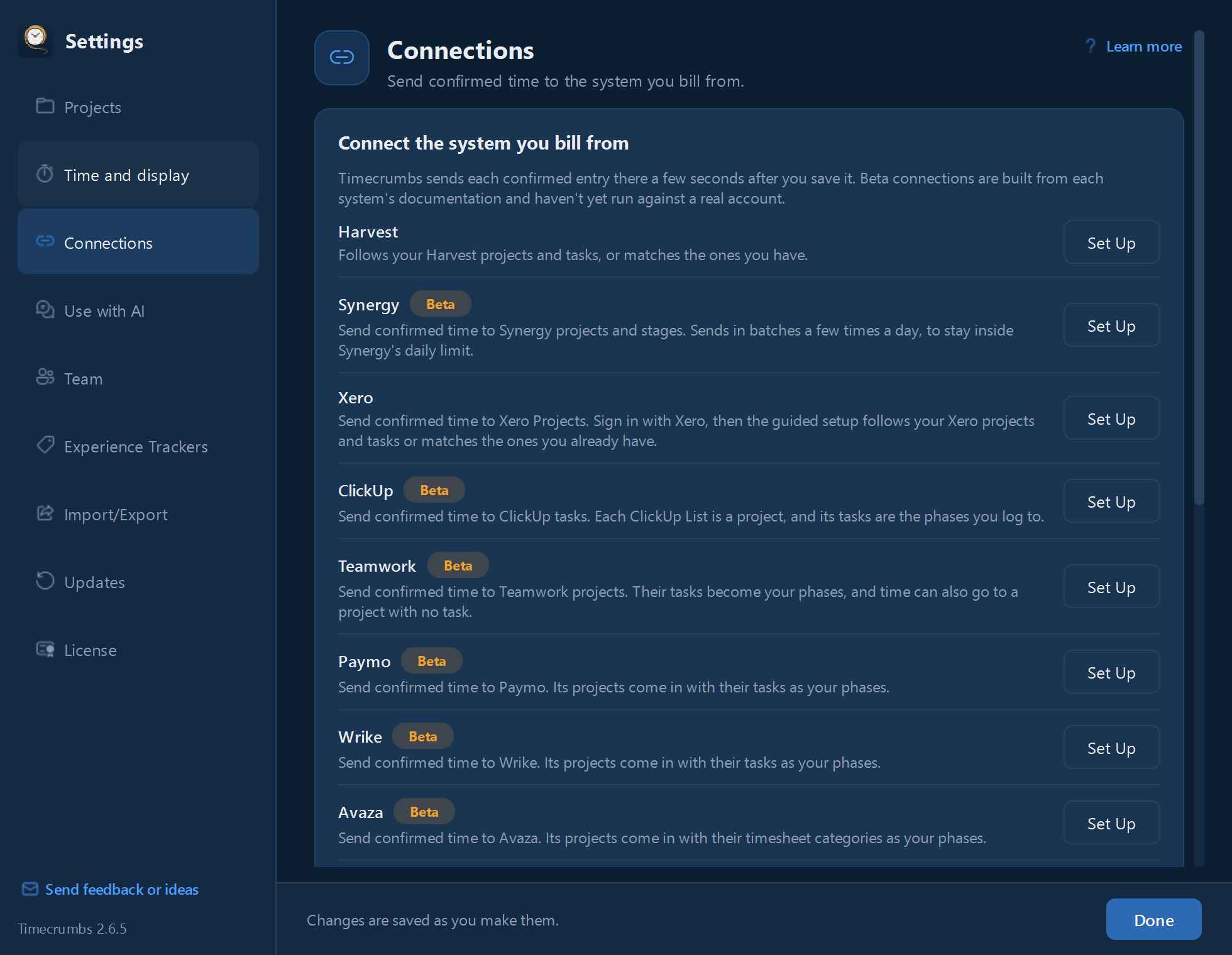
- Click Settings in the top bar, then Connections.
- Find your system under Connect another system and click Set Up.
- Sign in, or paste the access token your system gives you. The setup screen says where to find it.
- Answer the one question the guided setup asks: Follow or Match.
See the integrations for the systems Timecrumbs connects to. Systems marked Beta are built and being tested with live accounts.
Follow or Match
- Follow your system, if you're new to Timecrumbs: your projects come in from it, already linked, its tasks become your phases, and the tasks of its internal or overhead project become your non-project categories. New projects created there are added for you.
- Match my Timecrumbs setup, if you already have projects and entries: Timecrumbs matches your projects, phases, and categories to theirs on its own and shows you only its guesses and the ones it couldn't match.
To change the links later, click Review Links on the system's card in Settings, Connections.
What gets sent
- Entries you confirm, a few seconds after you save them, and later edits and deletions of those entries.
- Each entry's date, hours, project or linked category, task, and note; some systems also get the time of day. Your activity, window titles, and screenshots are never sent.
- Your exact time. Your billing system rounds it with its own settings.
- Never: private projects, or non-project categories you haven't linked.
- If your firm requires notes, an entry without one waits until you add it.
The line under the Week Summary shows how sending is going. If a sign-in stops working, the system's card says so; click Reconnect… and sign in again, and your links and settings stay as they are.
Still stuck? Email [email protected] and a person will reply, usually within one business day.