
Install Timecrumbs
- Run the installer. It takes about a minute and needs an administrator to approve it.
- When it finishes, a clock appears in the system tray, by the Windows clock. That's the recorder: it notes which program and document you're working in, and it starts with Windows from now on.
- Timecrumbs opens its welcome screen.
The welcome screen
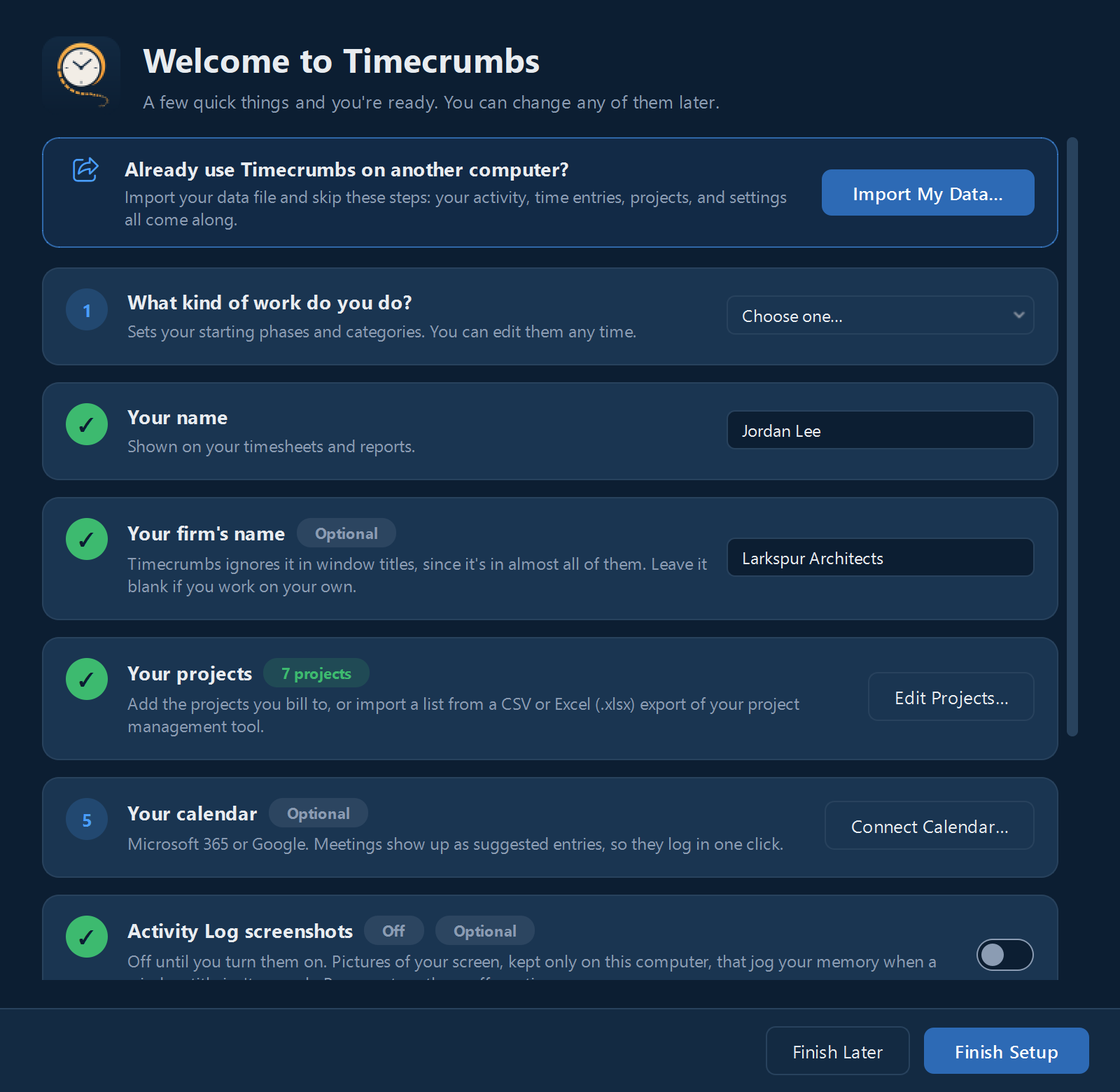
The welcome screen asks a few quick questions. Each step turns green when it's done, and you can change any of them later.
- What kind of work do you do? Pick your field, and Timecrumbs fills in starting phases and non-project categories to match.
- Your name. It goes on your timesheets and reports.
- Your firm’s name (optional). Timecrumbs ignores it in window titles, since it's in almost all of them.
- Your projects. Add the projects you bill to, or import a list from a CSV or Excel file. See Projects.
- Your calendar (optional). Connect it so meetings show up as suggested entries. See Calendar.
- Activity Log screenshots (optional). Turn them on if you want pictures of your screen to jog your memory.
- Use with your AI (optional). Connect the AI app you already use. See Your AI.
- Working toward a license? (optional). Turn on an experience tracker. See Experience trackers.
- Click Finish Setup. Finish Later keeps your answers so far.
Moving from another computer? Click Import My Data at the top of the welcome screen instead, and skip these steps. See Moving to a new computer.
Your first day
Work as you normally do. Timecrumbs records in the background and never asks you to start or stop a timer.
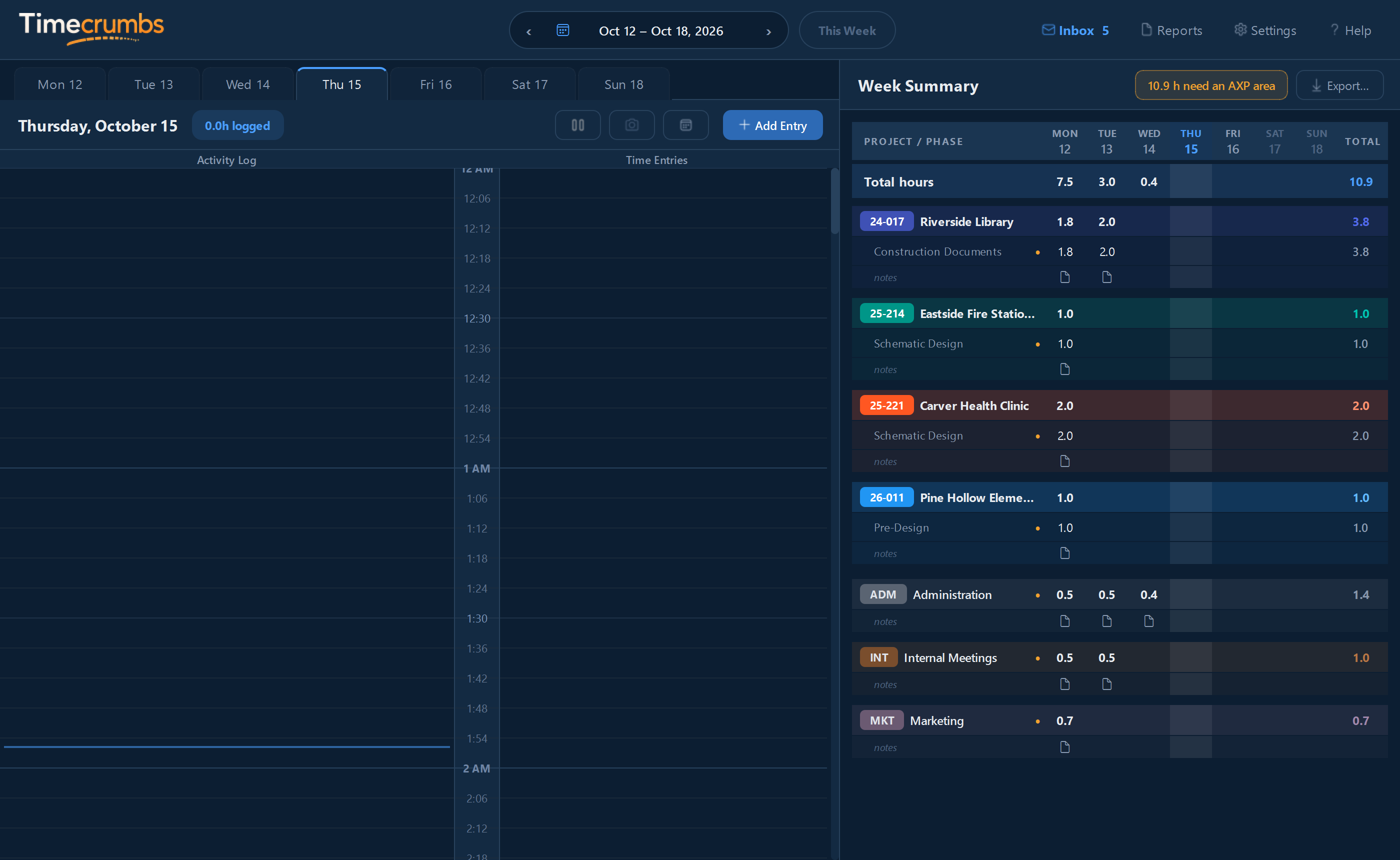
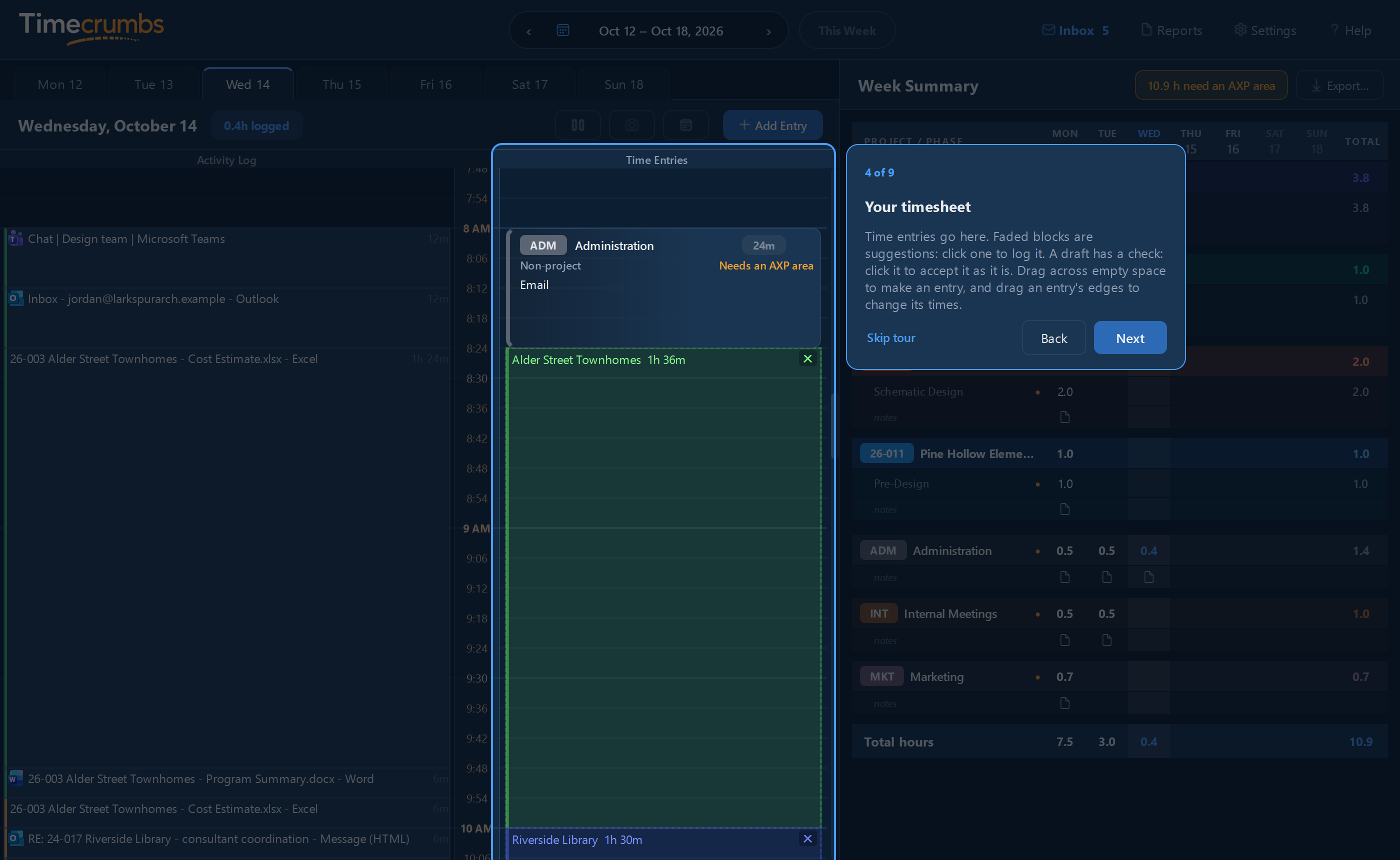
At the end of the day, open Timecrumbs from the clock in the tray or the Start menu. Your day is laid out on a timeline: what you worked in on the left, your time entries on the right. Timecrumbs has already suggested entries for the stretches it recognized. Your first suggestions are ready by the end of your first day, and they get better as you confirm and correct them.
The first time you open it, a short tour points out each part of the window, one at a time. Run it again any time from Help, Take the Tour, and find these guides from Help, Guides.
Next: Your day shows how to turn the timeline into entries.
Still stuck? Email [email protected] and a person will reply, usually within one business day.