
Reading the timeline
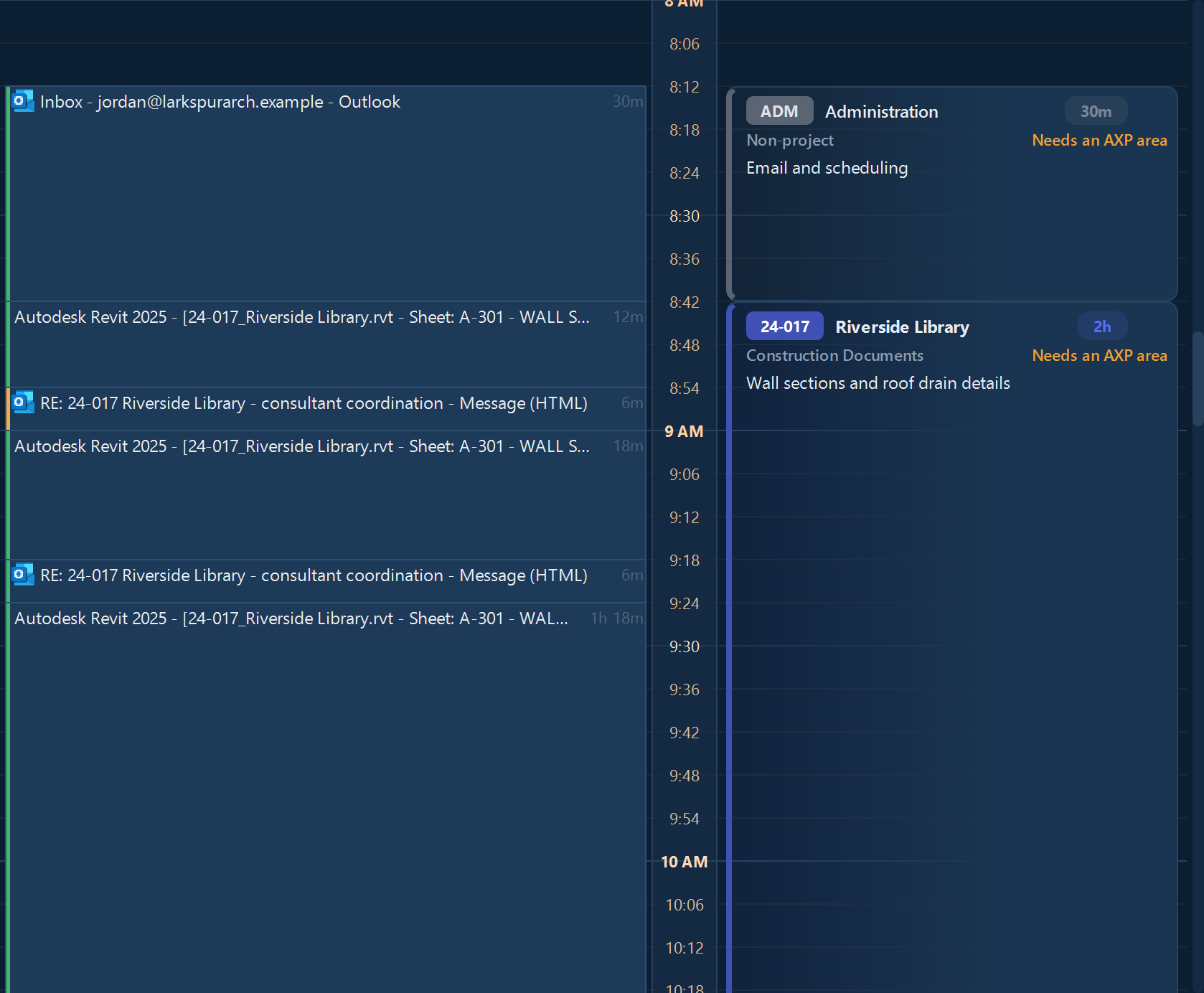
- Activity Log, on the left: each stretch of work, labeled with the window you were in and how long you spent. Time away from your desk is set aside, so a lunch break doesn't end up on a bill.
- Time Entries, on the right: your confirmed entries in their project's color, with the project, phase, and note.
- The time ruler runs between them, so you can line up what you did with what you've logged.
- Week Summary, on the right of the window: your hours by project, phase, and day.
Suggestions
A dashed outline in Time Entries is Timecrumbs's suggestion for a stretch of work it recognized.
- Click the suggestion to open it.
- Check the project and phase, and add a note.
- Click Save Entry.
Wrong project? Click the × on the suggestion, or right-click it and choose Log under a different project. Timecrumbs remembers the correction, so the same work goes to the right project next time.
Drafts and questions on the timeline
- A solid block with a badge is a draft, ready to accept. The badge says who made it: Draft for Timecrumbs, AI for your AI app. Click the check beside the badge to accept it as it is, or click anywhere else on it to open it and change it first.
- An amber, dashed block with a ? is a question about time Timecrumbs couldn't place. Click it to answer.
- A gray, dotted block is waiting for your AI to read a note you left on it.
The same drafts and questions are in the Inbox, a day at a time.
Adding and editing entries
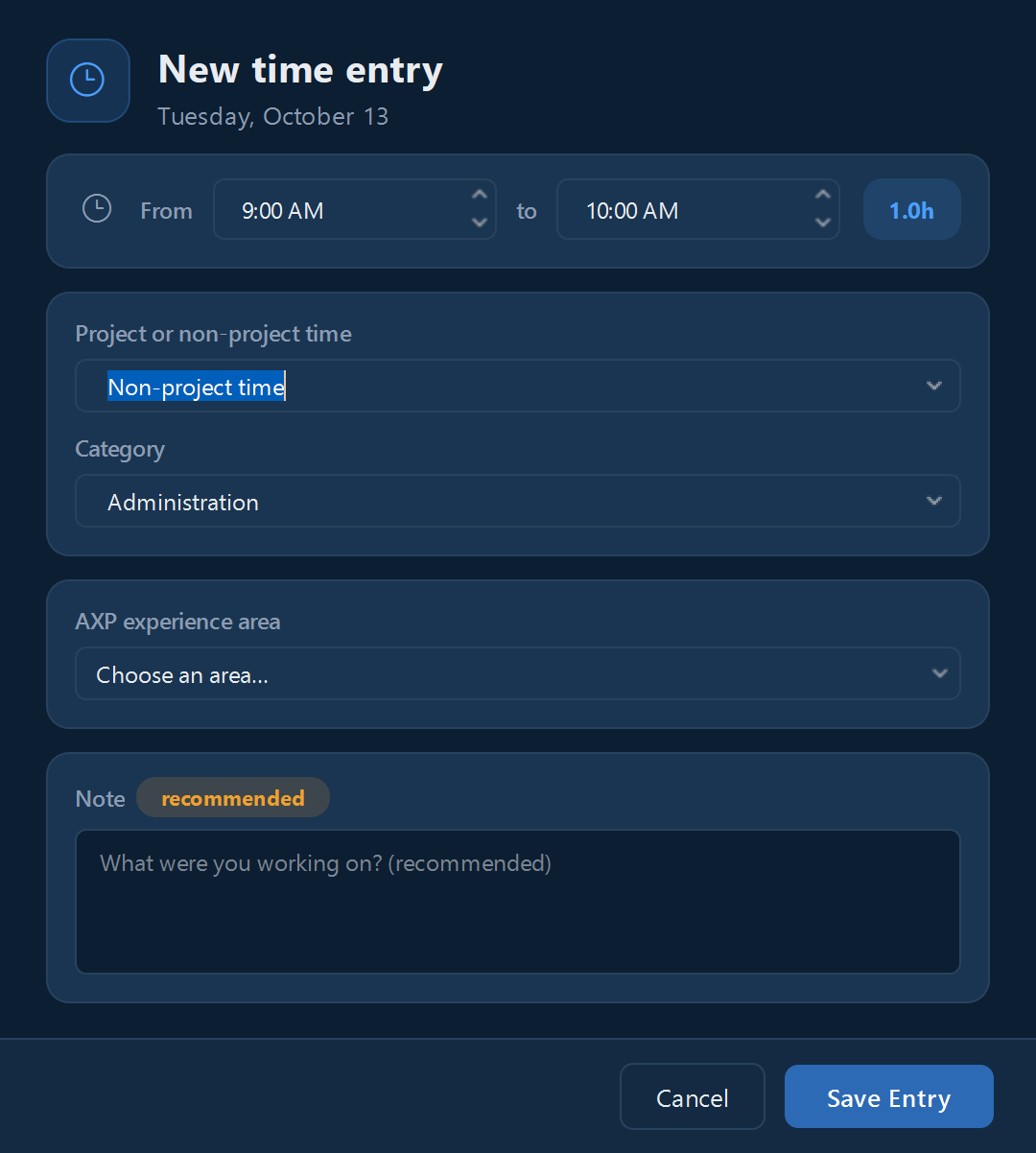
Click Add Entry in the day's header for time Timecrumbs didn't see, such as a meeting across town or a call on your phone. Pick the project or a non-project category, the phase, the times, and a note.
Click any entry to edit it. Change its project, phase, times, or note, then click Save Entry.
Time that wasn't work, such as lunch or personal browsing? Click the block in the Activity Log to open its details, and click No Time Entry Needed. The screenshot viewer has the same button, and in the Inbox the same answer is Not work.
Undo
Press Ctrl+Z, or click Undo in the day's header, to take back your last change: an entry added, edited, moved, or deleted, a draft accepted, or an Inbox answer. Keep going to step back further, one change at a time.
An entry you just made or changed also shows its own Undo button until your next change.
In a narrower window, the buttons in the day's header show as icons only; point at one to see its name.

Still stuck? Email [email protected] and a person will reply, usually within one business day.