
Outlook and Microsoft 365
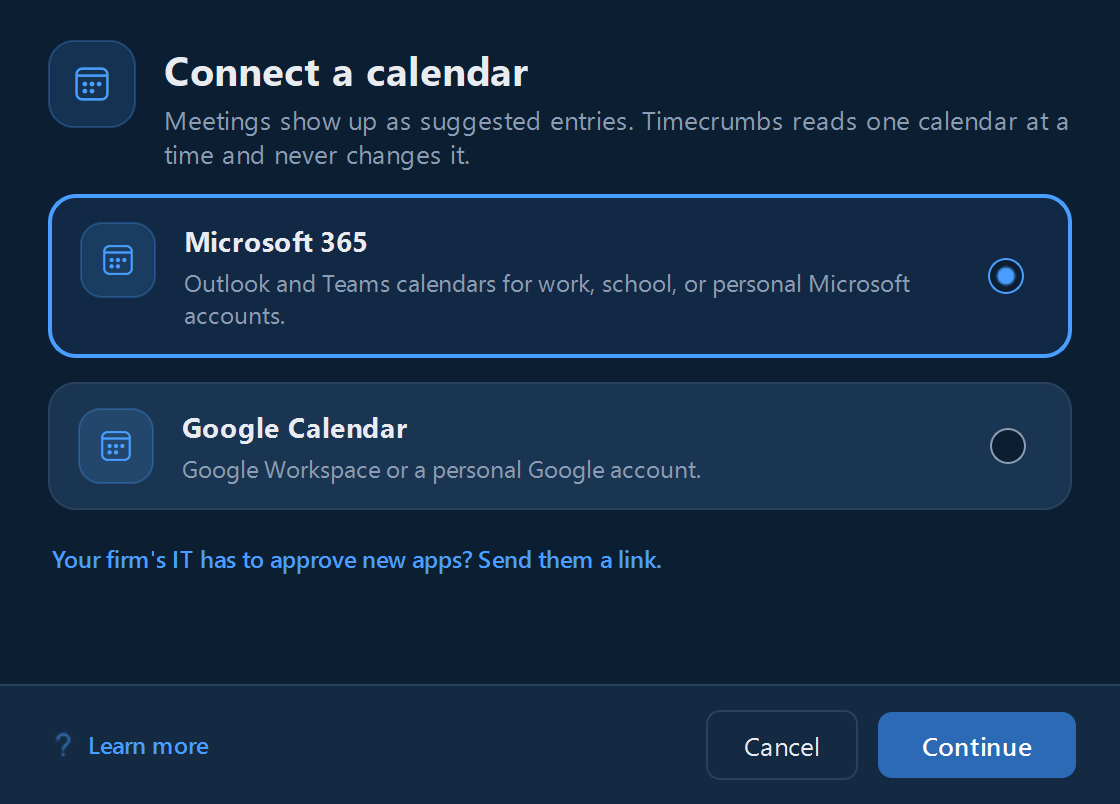
- Click Connect Calendar in the day view, or connect it on the welcome screen.
- Choose Microsoft 365.
- A small Timecrumbs window shows a short code, already copied for you, and opens Microsoft's sign-in page in your browser.
- Paste the code, sign in with the work, school, or personal Microsoft account your meetings are on, and approve.
- The Timecrumbs window closes by itself, and your meetings start showing up.
Timecrumbs only reads your calendar; it can't change it. Meetings you accepted become suggested entries, and declined, cancelled, and "free" events are ignored. Your sign-in is kept in Windows Credential Manager on your computer.
To disconnect, click Connect Calendar and choose Sign Out.
Google Calendar
- Click Connect Calendar in the day view, or connect it on the welcome screen.
- Choose Google Calendar and click Continue.
- Google's sign-in page opens in your browser. Sign in with the Google account your meetings are on, a Google Workspace work account or a personal one.
- Google shows what Timecrumbs asks for: your name and email, and read-only access to the events on calendars you own. Approve it.
- When the browser says you can return to the app, go back to Timecrumbs. Your meetings start showing up.
Timecrumbs only reads your own calendar; it can't change it. Meetings become suggested entries the same way they do from Microsoft 365. Your sign-in is kept in Windows Credential Manager on your computer.
To disconnect, click Connect Calendar and choose Sign Out. You can also remove Timecrumbs's access at myaccount.google.com/permissions.
If your IT has to approve new apps
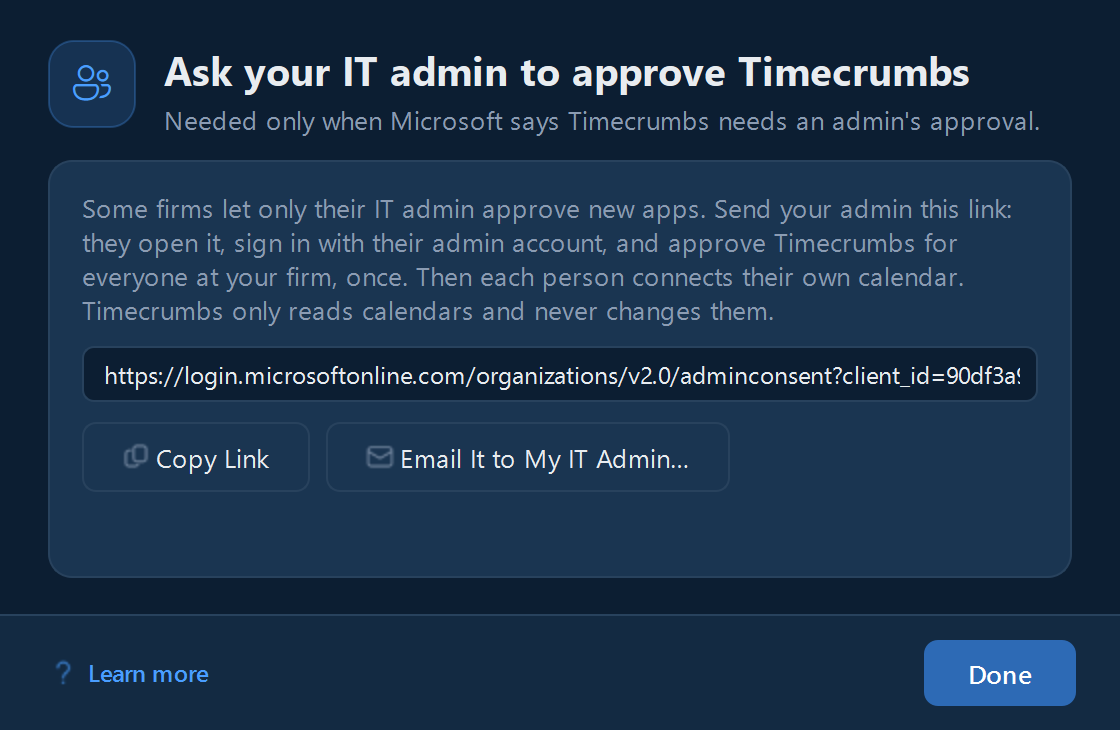
Some firms let only an IT administrator approve apps that connect to Microsoft 365. If yours does, Microsoft tells you when you sign in.
- On the Microsoft 365 sign-in screen, click the IT approval link.
- Click Copy Link to send it yourself, or Email It to My IT Admin… for an email that's written for you.
- Your IT administrator opens the link and approves Timecrumbs for your firm in one step.
- Sign in again. Everyone at your firm can connect their calendar from then on.
Still stuck? Email [email protected] and a person will reply, usually within one business day.