
Drafts
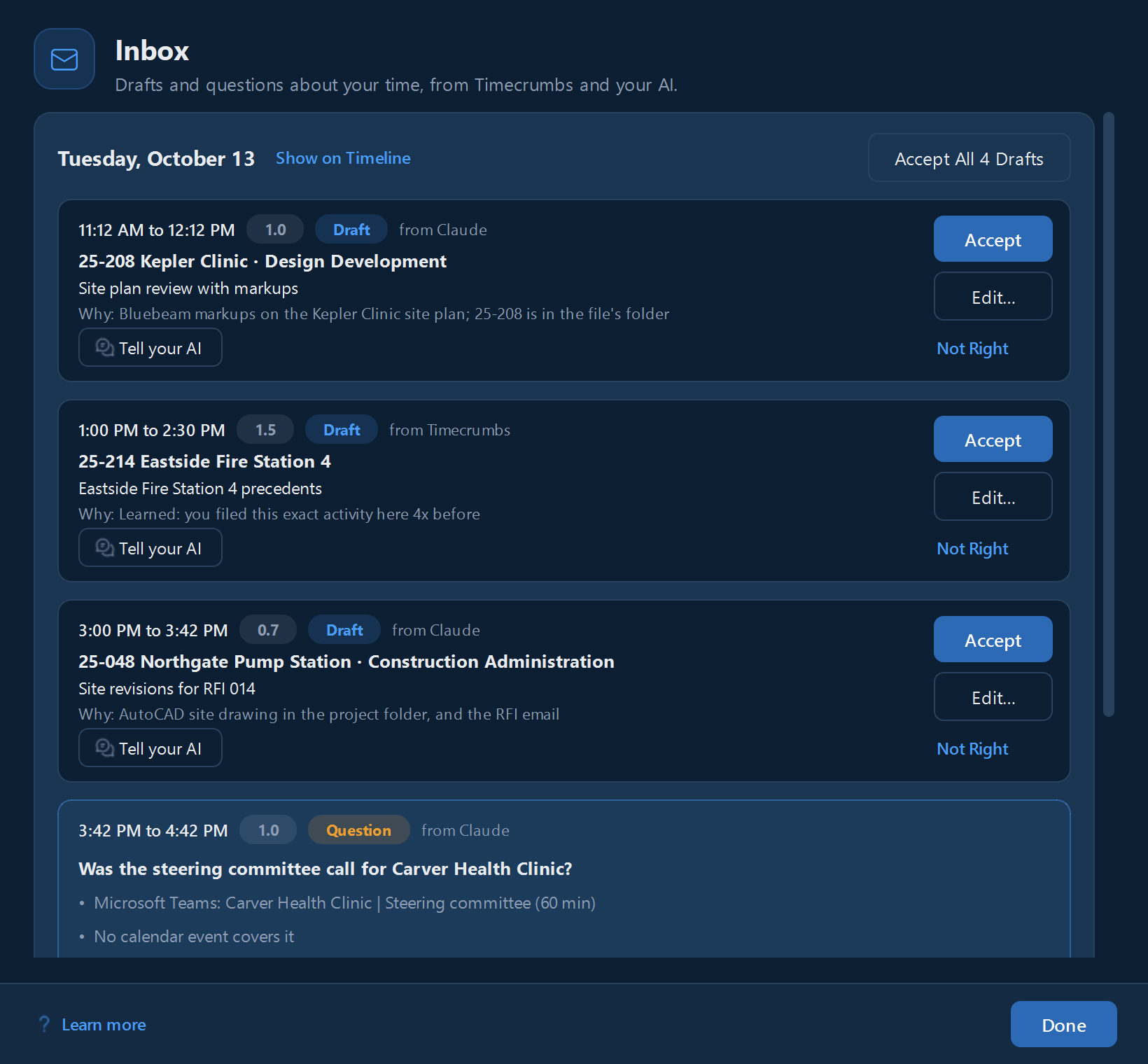
Click Inbox in the top bar. The number on the button, and on Timecrumbs's taskbar button, is how many items are waiting. Items are grouped by day, in time order.
A draft is an entry ready to accept:
- Accept saves it as it is.
- Edit… opens it so you can change the project, phase, times, or note first.
- Not Right turns it into a question about that time, and teaches Timecrumbs that it guessed wrong.
- Accept All accepts every draft for that day.
Questions
A question is about time Timecrumbs couldn't place on its own. Under it you'll see what you were doing then: the main windows, what they were about, and how long you spent, plus what you logged just before and after.
- Click one of the answers to save it.
- Enter it myself opens an entry for that time, to fill in however you like.
- View screenshots shows your screenshots from that time, if you take them.
If you call the same meeting or window "not work" twice, Timecrumbs settles it for you next time and lists it under Settled for you, with Undo if you'd rather it asked. The last few minutes before you step away, too short to ask about, are settled and listed there the same way.
How many questions you get is up to you: Settings, Time and display, How much to ask. To stop Timecrumbs's own drafts and questions, turn off Draft entries for me there.
Time Timecrumbs didn't record
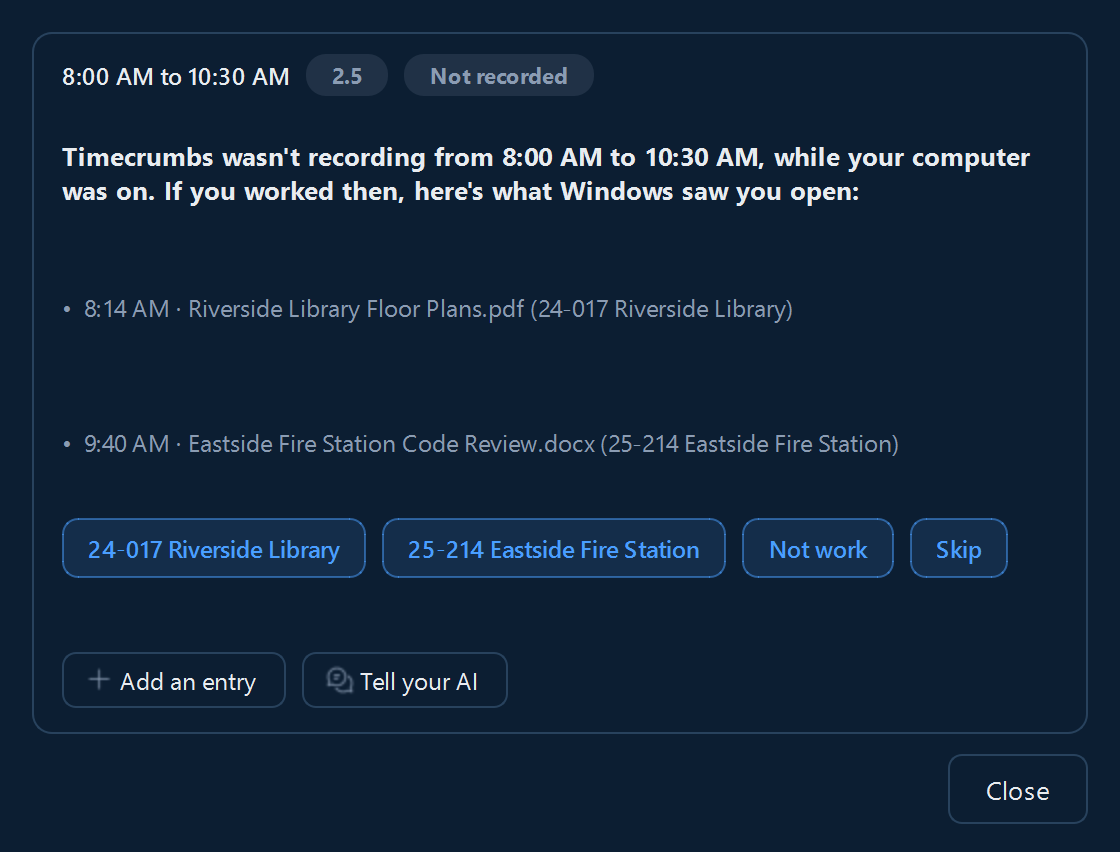
If Timecrumbs wasn't recording while your computer was on, for example after it went to sleep, the Inbox says so and shows the files and folders Windows saw you open in that time, so you can add entries for what you remember.
Choose a project to open the entry editor already set to it, or choose Skip if there's nothing to add. Time after you stop recording on purpose is never asked about.
Tell your AI
If you've connected an AI app, every item also has Tell your AI. Type what the time was actually for, in your own words, and click Save Note. Your AI reads the note on its next daily catch-up, or the next time you ask it, and turns it into entries or a follow-up question. Until then the item waits, and you can still fix it yourself or take the note back.
See Your AI to connect one.
Still stuck? Email [email protected] and a person will reply, usually within one business day.