
Your project list
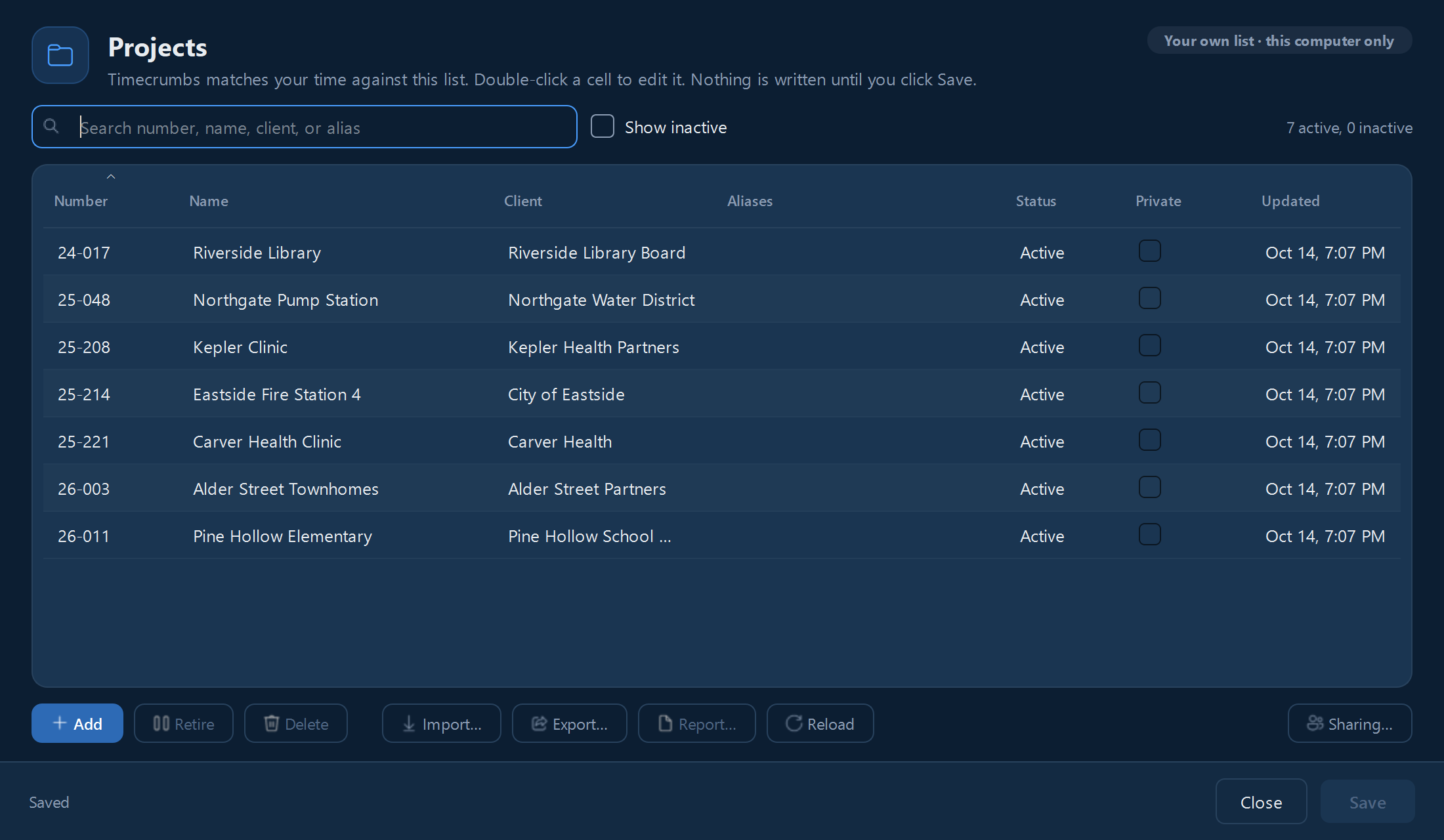
- Click Settings in the top bar, then Projects, then Open Projects.
- Add a project by hand: its number, its name, and the client if you like.
- If people call a project something other than its official name, add that as an alias ("Acme" for "Acme Logistics Network Study"). Timecrumbs recognizes it too.
- When a project is finished, select it and click Retire, so it stops matching your work.
Importing a list
- In the Projects window, click Import.
- Choose a CSV or Excel (.xlsx) file exported from your project management or accounting system.
- Timecrumbs guesses which columns hold the number, name, and client, and shows you what will be added or changed before anything is saved.
- Check the preview, then confirm.
Importing again later merges the new file into your list: nothing you added by hand is lost.
Private projects
Mark a project Private for your own work outside the firm, such as a side business. A private project stays on your computer only: it never goes into the firm's shared list and is never sent to a billing system. Timesheet exports leave it out unless you turn on Include private projects. It still matches your work and gets suggestions like any other project.
Settings for the whole firm
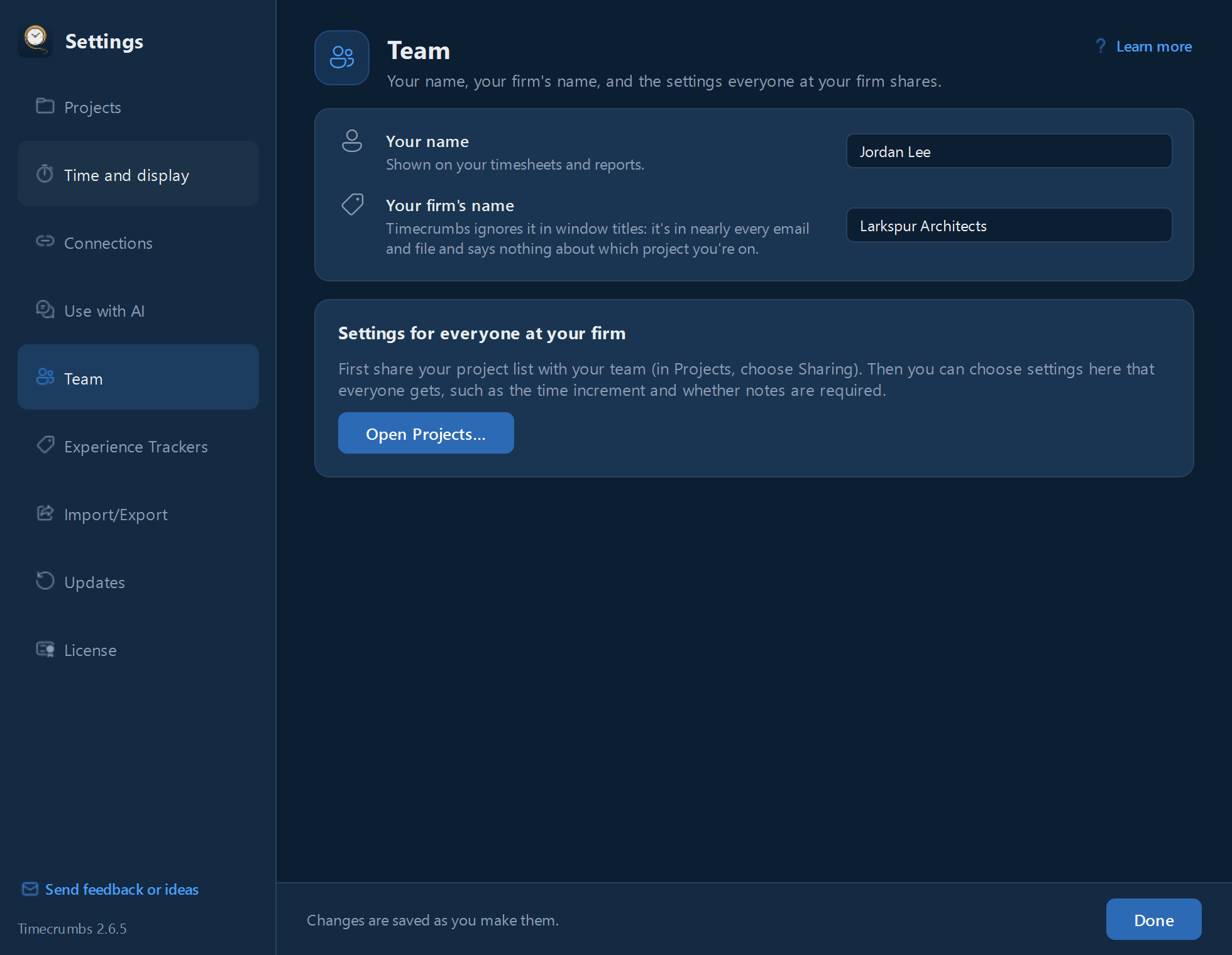
Once your project list is shared, Settings, Team lets your firm decide, setting by setting, whether each person picks their own, the firm suggests a default, or the firm sets it for everyone: how hours are shown and billed, whether notes are required, and more. The same page holds your firm's name.
Anyone who can make changes to the shared project list can change these settings.
Still stuck? Email [email protected] and a person will reply, usually within one business day.